MCP Registry Server Catalog
The server catalog contains all the MCP servers added from the servers in Registry Connections. Each tile represents an MCP server and contains the server name, version, description, number of tools, publisher, and status.
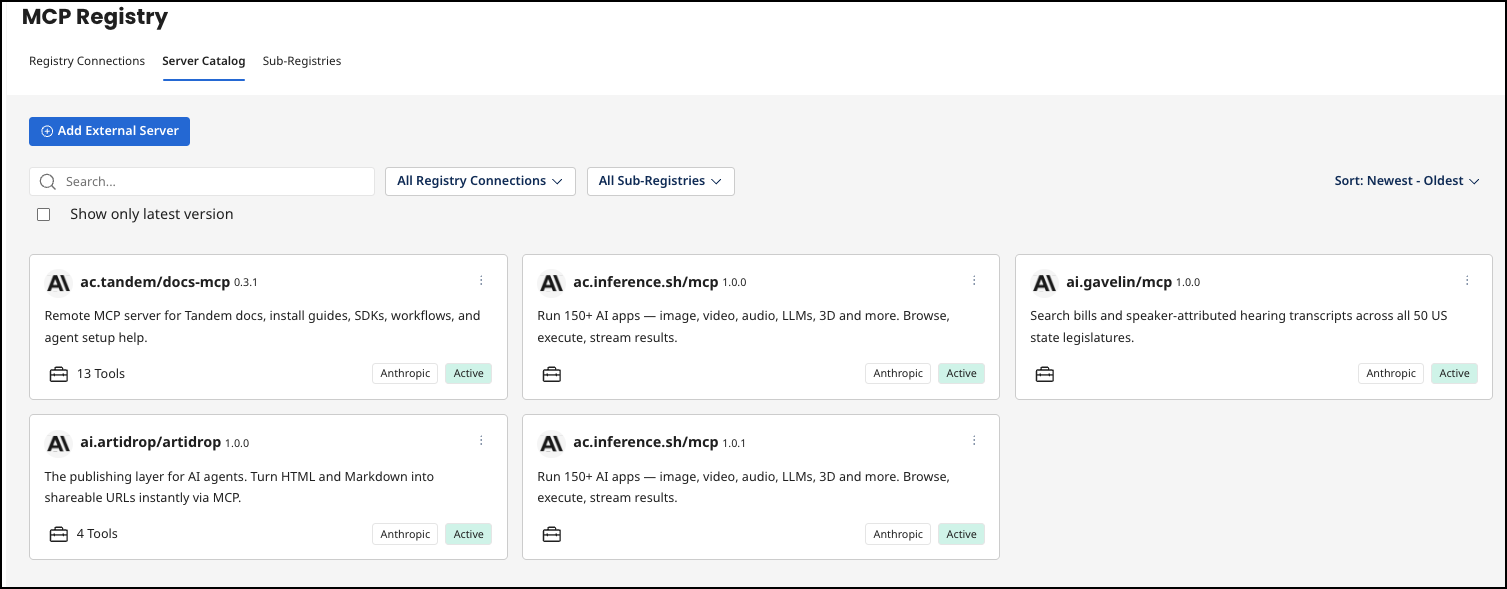
By default, only the latest version of each server is displayed. Unselect the Show only latest version option to display all server versions. Select the three dots on the top right corner of any tile for additional options.
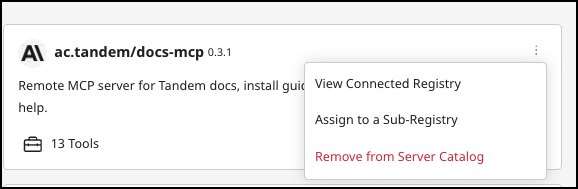
The following options are available for all MCP servers:
- View Connected Registry - Opens the parent MCP Registry.
- Assign to a Sub-Registry - Adds the server to the specified sub-registry.
- Remove from Server Catalog - Removes the server from the server catalog. It is also removed as a source in AgentStudio.
- For servers that were manually created or imported from external registries, such as the Official MCP Registry, the specified server version is soft-deleted, and all registry associations for servers are deleted.
- For servers that were imported from Boomi MCP Registry, the specified version from the catalog and all sub-registries are deleted.
- Check for Updates - Tools and metadata associated to an MCP server are fetched when a server is imported from an external registry. You can use this option to force an update to the MCP server version.
Server details
Select any tile for details on the MCP server, tool listing, documentation, visibility options, and settings.
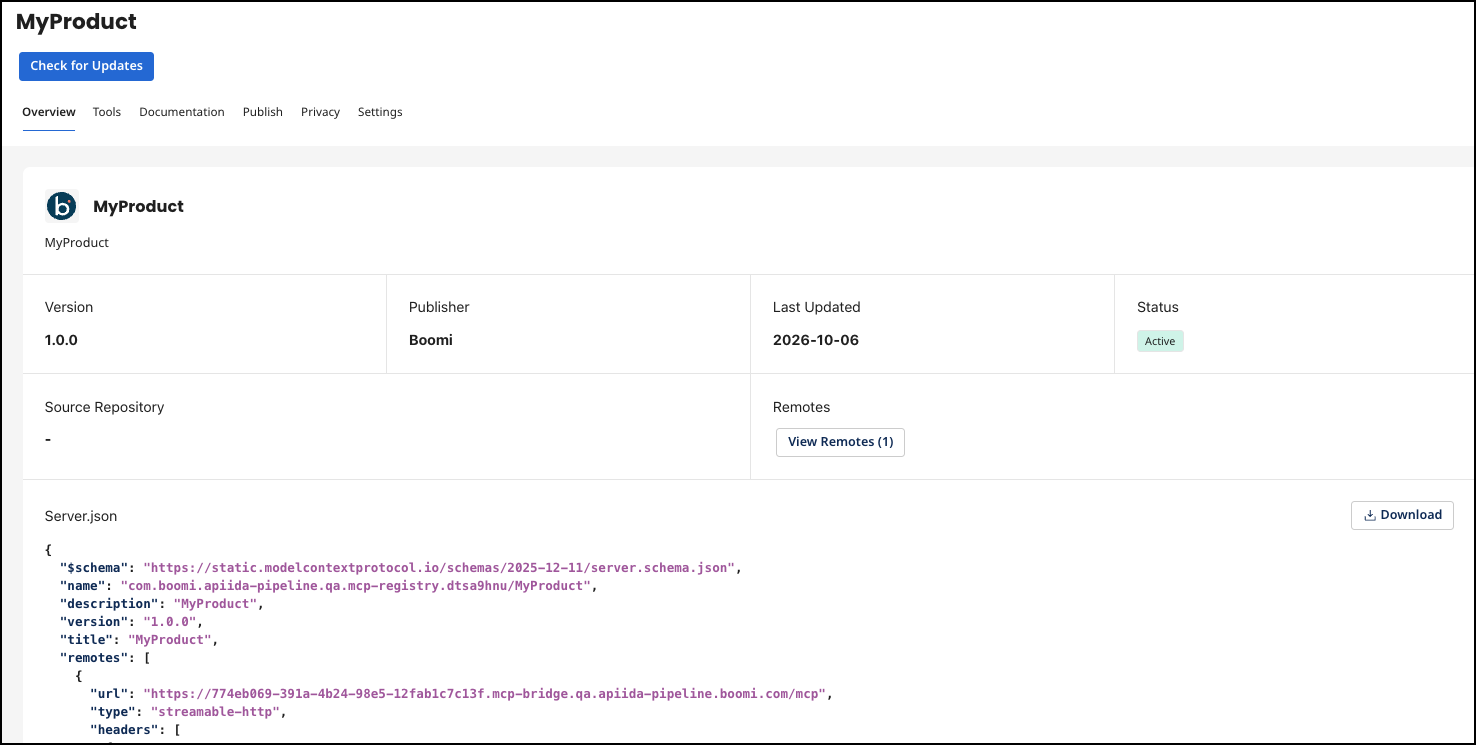
Overview
Contains the MCP server details: name, version, publisher, last updated, status, source repository URL, Endpoint URL, remotes, and downloadable server.json file.
The server.json schema describes the server: name, description, version, URL, icons (png/gif/jpeg), packages (for standard input/output servers) or remotes (for hosted servers), repository link, required environment variables, and capabilities. Each remote is a separate endpoint the server can be reached on, with its own transport and headers.
Depending on the source, the server.json comes from the following locations:
- API Product-enabled MCP servers: Boomi generates the
server.jsonautomatically from the API product definition. - Servers from the Official MCP Registry: their existing
server.jsoncomes with them. - Manually added external servers: the user provides the connection details when registering the server and the
server.jsonis added. - In the Developer Portal: rendered as the tile a consumer sees and copies from when configuring a client.
Tools
A list of the tools and their descriptions in the server. If you want to specify or change the tool title, add the operation summary to the OpenAPI specification file.
Documentation
If an API product has documentation, it displays here. You can download documents, but you cannot edit them in the MCP Registry.
Publish
-
Publish to Developer Portals - If enabled, the MCP server is visible in all developer portals.
-
Publish to Official MCP Registry - Publishing a version to the MCP Registry is permanent. Once published, it will be publicly visible and can no longer be unpublished or edited.
Privacy
- Public - The MCP server version will show up in the Developer Portal for users that are allowed to access the Administration and Developer portals.
- Restricted - The MCP server version is only visible to the Assigned Organizations.
Settings
-
Assign to Sub-Registries- You can assign sub-registries to the MCP registry.
noteIf the MCP server version is published, you cannot edit these settings.
- Description
- Website URL
- Repository URL
- Repository Source
- Repository ID
- Schema URL
- Transport Type
- Server Endpoint
- Headers
- Icons
Add an MCP server to your server catalog
You can add MCP servers to your server catalog. Select Add External Server and provide the following information:
- Server Name - Required display name.
- Version - Default is 1.0.0, but can be changed.
- Description - Required description of the MCP server.
- Transport Type
- Streamable HTTP - Uses a single endpoint that responds with plain JSON or upgrades to a stream when needed.
- SSE - Uses two separate endpoints - a persistent stream for server messages and a POST endpoint.
- Server Endpoint - The endpoint URL.
- Headers - Optional
